

Table Contents Page: T7
Anatomage Table 7 Update: The Full List of Added Content and Features (2020)
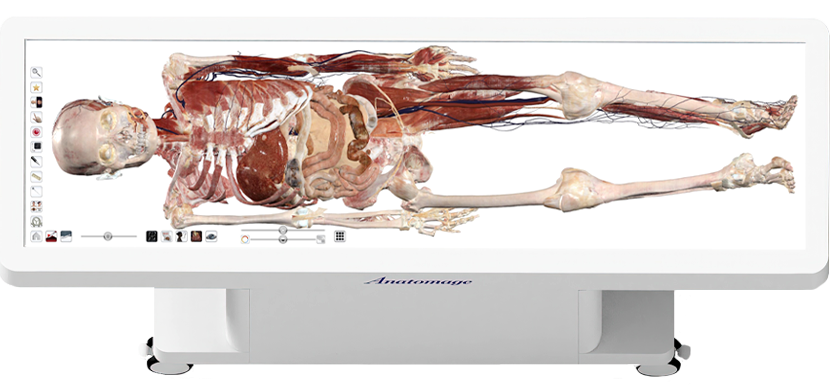
For over a decade, Anatomage has continuously expanded and refined the content of the Anatomage Table, delivering the most advanced reconstructions of real human bodies, uniquely augmented by dynamic simulations in functional anatomy and clinical procedures. Each annual update builds on the previous generation, adding new cadavers, real-anatomy-based physiology, clinical procedures, pathological cases, and interactive learning experiences designed for medical education and training.
Anatomage Table 7 introduces new physiology and improvements to tools and features.
Anatomage Table 7: New Content and Features
Release date: 2020
Main Toolbar
New icon to return to the main toolbar from an open scan.
Open File:
- Will now provide you a list of previous CT/MRI scans you have recently opened.
- Access to PACS has been moved to inside the “Open File” Tab.
Gross Anatomy:
- Male and Female Asian Cadaver data sets have been updated.
- New Premade presets have been added for all cadavers.
- Bony landmarks have been added to all cadavers.
High Res Regional Anatomy:
- Data sets for all existing scans have been updated.
- Removal of low quality scans.
- Addition of regional scans include the following:
- Male Head and Neck
- Male Brain
- Male Pharynx
- Male/Female thorax
- Male Heart
- Male/Female Kidneys
- Female Stomach
- Female Upper Arm
- Female Forearm and Hand
- Female Knee
- Female Lower Leg
- Female Foot
- Female/Male Thigh
- Eukaryotic Cell
Case Library:
- Can search for scans by more than just region:
- Specialty Tab: Search by medical specialty (Cardiology, Neurology, etc).
- Segmentation: Search for a specific organ (brain, heart, etc). These scans have a segmented image of that specific organ that can be turned on/off to see the segmented structure in the context of a scan.
- Subtitles have been added to many scans to provide more detail.
- The only filter tags available to search by are MRI and CT.
- A star has been added to some scans where an extra radiology report and presets are available.
- Additional scans have been added to the case library including more cadaver scans and marine animal scans (fish, sharks, etc.).
Histology:
- Can search for scans by more than just Organ System:
- Tissue Type: (Connective Tissue, Muscle Tissue, etc.) will let you search for histology slides of a specific tissue.
- When searching for a slide in either Organ System or Tissue Type, filter tags have been added that are specific to every category to make searching easier.
- Additional Histology slides have been added to the Histology library.
- You can now open up to 4 histology slides at once to compare these images.
Curriculum:
- Segmented Curriculum: Anatomage Created Presets for each cadaver by system which have flat colors and annotations applied.
Prosection:
- An annotation regions list is now available. Tapping on the check next to a region on the list, will turn on an annotated painted region on the prosection. Tapping on the painted region will turn off the annotation.
Help:
- A new “Help” Tab has been added to the Main Toolbar.
- By tapping on “Help” you can pull up How To Documents for each section of the Main Toolbar.
- “Help” also includes a section for Best Practices and FAQs.
Physiology:
- A “Physiology” tab has been added to the Main Toolbar that shows some physiological processes.
Physiology
Heart Motion (regional and full body)
Displays an accurate beating heart including chamber contraction, valve opening/closing, and the option to view conduction.
Opens with an ECG interface that you can open and close. This interface lets you control heart rate and observe how the beating heart changes.
Pathways (male and female)
Allows you to outline a physiological pathway by selecting the structures that are active in the pathway.
You can select a color, effect, and speed to give the desired details of the pathway.
Instead of creating your own pathway, the following premade pathways exist for you to observe:
- Alcohol
- Blood Vessels to and from Kidneys
- Deltoid Intramuscular
- Detailed Urine Flow
- Digestion
- Epidural (nerve block)
- GI Contrast
- Insulin
- IVC Heart Chambers
- Respiration
- SVC Heart Chambers
Catheterization
Observe and play through the steps of premade simulated pathways of heart catheterization procedures including the following:
- Percutaneous Coronary Intervention
- Coronary Angiogram
- Ventricular Angiogram
- Right Heart Catheterization
At some steps, you can adjust the catheter length and axial rotation.
Nerve Pathways
Allows you to tap on a dermatome, muscle, or organ to see which nerves are responsible for innervation of that particular region/structure.
The pathway is traced out from the region/structure, back to the brain and associated cortex region.
The nerves that innervate the region/structure will be categorized by nerve type.
Changes and Additions to Current Icons and Tools
Layout:
- 2D/3D
- CT of scan added. This will load in a third window displaying the CT of the opened scan in the segmented cadavers.
- This highlights the outline of vessels in the 2D section. As you scroll through the 2D section, you will see the arteries, veins, and nerves outlined.
- When a clip is applied to the 3D image, tapping on this icon on the 2D image will sync the 3D clip up with the 2D slice. Sliding either slider bar will move both the 2D and 3D image in sync.
Histology:
Will load in a prosection of your choice of the same structure the Histology slide is showing.
Will load in a CT scan of your choice of the same structure the Histology slide is showing.
Application Properties:
- Layout: Snap software to right monitor and left monitor (you can also still do this by the following keyboard commands, Window → FN → F11, Windows → right or left arrow key).
Pin Tool:
- Can change the numbers that appear on each pin, no longer have to countconsecutively from 1-10.
- Can place more than 1 needle/syringe at a time.
- When importing in a custom model, there is now an Action Menu associated with the model that contains the following:
- Move Model
- Point Registration
- 3D/2D Layout
- Model Scaling
Measurement Tool:
Area Measurement tool will take a measurement of an enclosed shape.
Spline Measurement tool will take a measurement of a curved line.
Quiz Mode:
New Quiz Mode interface.
Game is separate from quiz types. Other quiz types remain the same.
You can now edit the settings of a quiz to include enabled features, repeat skipped questions, randomize questions, timer options, and scoring option.
There is a new customize dialog when making a quiz where you can select the specific structures you want to add to the quiz. It looks similar to the visibility menu and functions the same way, except you hit the plus icon to add a structure to the quiz.
You can now have bony landmarks and origins/insertions as questions in Quiz Mode.
Quizzes can be saved to quiz history, a folder (new or existing) or exported and accessed the same way to take the quiz.
Quiz results save as a csv file after all have taken the quiz.
Presets:
- New icons:
- Save a preset
- Delete a preset
- Select all presets
- Reorder presets
View preset folders. You can now create a folder to add a preset(s) to so the presets can be left in the Table software.
You can create a PIN to lock these folders.
Anatomage Created: We have created premade presets for you to use. These presets are by system and have flat colors and annotations applied to highlight specific structures.
Presets that have been saved on 1 or 2 screens (for example anything created in Concourse) will be compatible with both 1 and 2 screens.
The pen tool will now be able to save with a preset.
You can still import presets by taping on the “Import VPF” tab, but now, you can also double tap on the VPF file on either the desktop or an external folder, or drag the VPF file to the Table icon on your Table, and the preset will open in the appropriate scan.
Explore Tool
Isolation tool:
Tap this icon, then a structure to first make all other structures transparent. Instead of tapping on the structure, tap on this icon again to isolate just this structure. Tap on this icon again to bring all structures back in.
- Removal tool:
When a structure is removed by the removal tool, this icon will pull up the removed structure on the right monitor. There will be a list of all the removed structures.
- Can sync the movements of both images or unsync.
Visibility Menu
- Rainbow wheel:
Addition of bony landmarks. Tapping this will turn on both the painted regions and annotations for all bony landmarks for the structure (or category) selected.
Tapping on the painted region of the bony landmark will toggle on or off the annotation of that landmark.
- Annotation menu:
Addition of bony landmarks and origins/insertion. Can toggle on one at a time.
Tapping on the painted region of the bony landmark or origin/insertion will toggle on or off the annotation of that landmark.
Action Menu
Addition of bony landmarks here as well. This will only toggle on all painted regions of the landmarks.
Only the painted region of the origins/insertions will toggle on. Turn on the annotations for these through the visibility menu.
Slider Bars
- Transparency has been added when sliding the slider bars to make it look like the structures are dissolving in and out as they are being added or removed which makes for a smoother transition.
- Sliding a slider bar will not lose the select image you have created.
Custom Annotations for Case Library, own DICOM scans, and Prosection:
You can now create your own custom annotations in the Case Library, your own DICOM scans, and in Prosections. You can add a group, and then add annotations to a list within the group. These annotation lists can be imported and exported just like how annotations have previously worked.