

Table Contents Page: T10
Anatomage Table 10 Update: The Full List of Added Content and Features (2023)
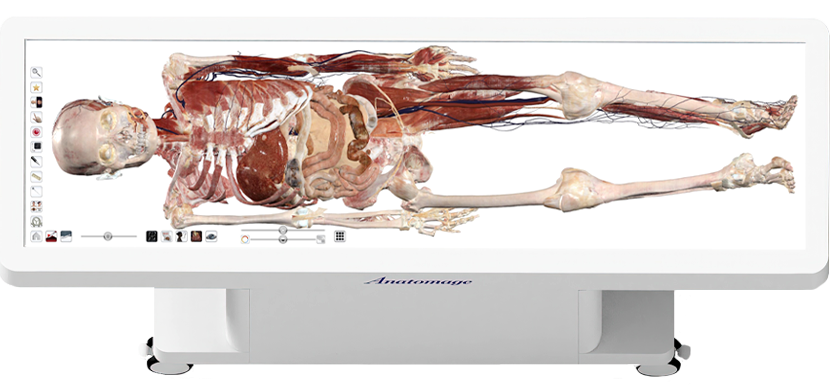
For over a decade, Anatomage has continuously expanded and refined the content of the Anatomage Table, delivering the most advanced reconstructions of real human bodies, uniquely augmented by dynamic simulations in functional anatomy and clinical procedures. Each annual update builds on the previous generation, adding new cadavers, real-anatomy-based physiology, clinical procedures, pathological cases, and interactive learning experiences designed for medical education and training.
With Anatomage Table 10, it’s not just about looking inside the human body but also understanding how time and diseases affect the anatomy. Our latest innovations will take you on a journey to visualize anatomy in various forms, from humans to animals to plants. Whether you’re a teacher, student, or doctor, Table 10 sets a new standard for studying and understanding anatomy.
Anatomage Table 10: New Content and Features
Release date: 2023
Cadavers Updates
New Cadaver Added
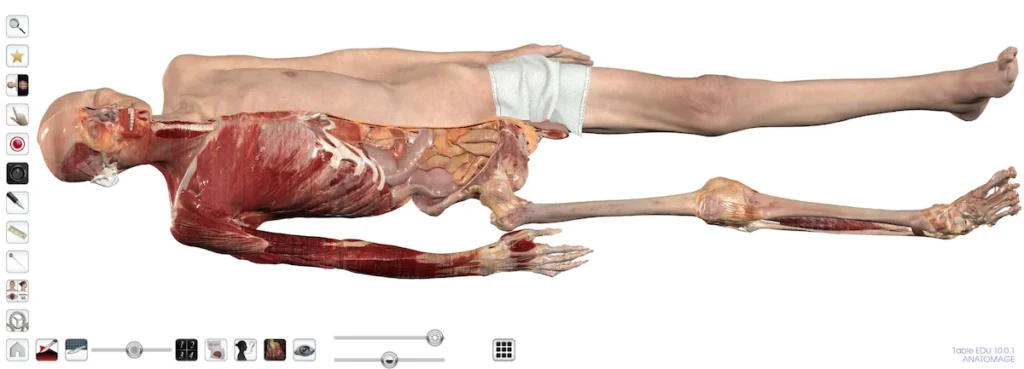
A new cadaver, “Hans”, has been added to the Table. Hans is a 70 year old male. The cause of death is lung cancer, which can be seen primarily in the right lung, with mets throughout the body.
Switch to Cadaver Nicknames
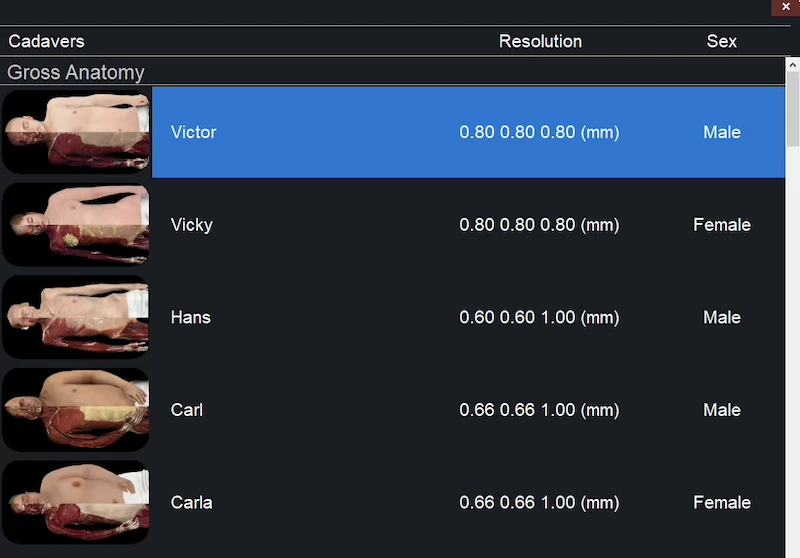
In the main menu, you will no longer see cadavers listed by description. Instead, they will be differentiated by their anonymous names.
- Male Full Body (Asian) -> Victor
- Female Full Body (Asian) -> Vicky
- Male Full Body (Caucasian) -> Carl
- Female Full Body (Caucasian) -> Carla
- New Male Full Body (Asian) -> Hans
New Features and Tools: Cadavers
Dual Res Cadavers
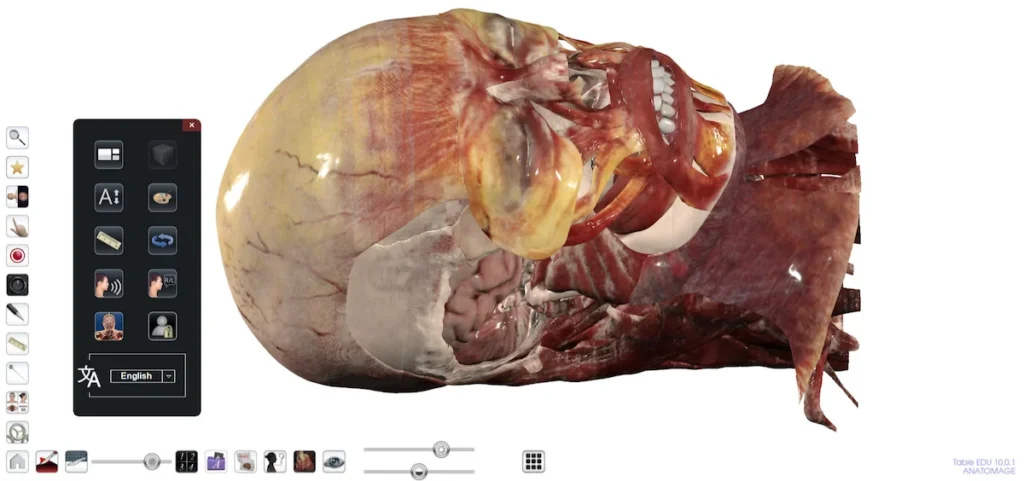
Settings: You are now able to toggle between our Dual Res or Standard views for Full Body Cadavers. With Dual Res, the anatomical structures will dynamically switch between normal and higher resolution when you zoom into them. Dual Res Clipping planes also show a higher resolution compared to the Standard view.
2D Flat Color
Layout Tool, 2D/3D View: Structures that have a flat color applied on the 3D cadaver will now also appear as colored in the 2D Slice.
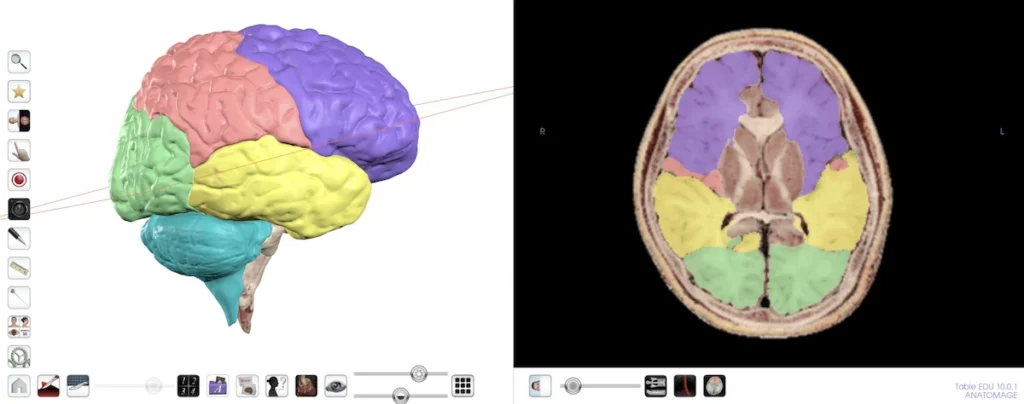
Use the 2D Flat Color tool to automatically flat color the entire 2D slice without coloring the cadaver.
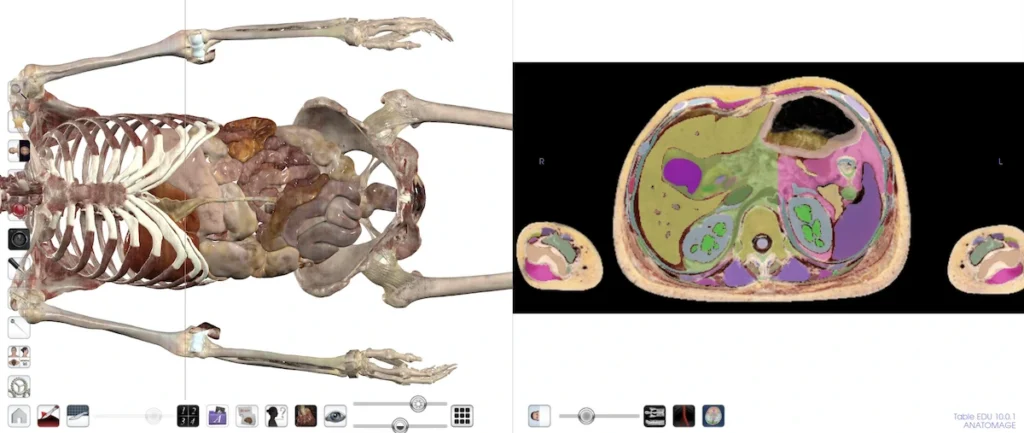
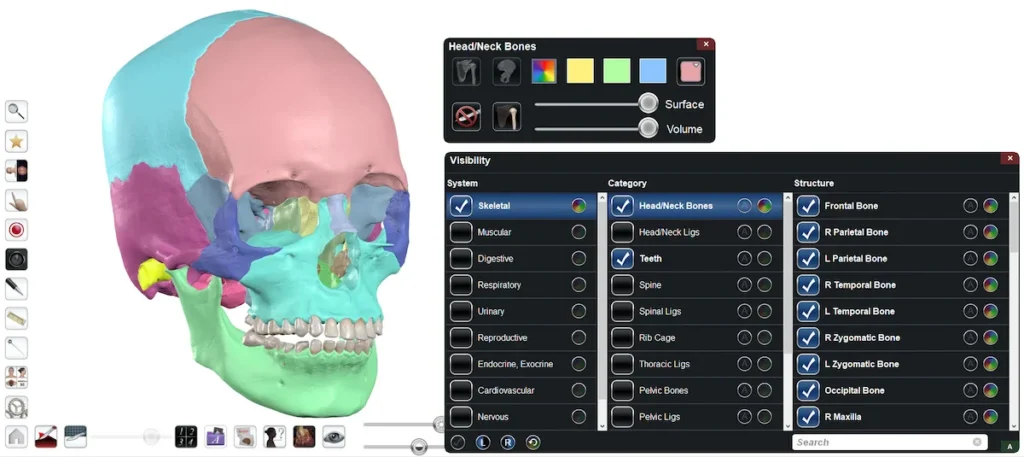
Randomized Colors
Visibility Menu: Within the “Rainbow Wheel” menu of any System or Category, you can now automatically color all the corresponding structures with one click. Coloring a Category will color every structure in that category a different color. Coloring a System will color every Category group within the system a different color.
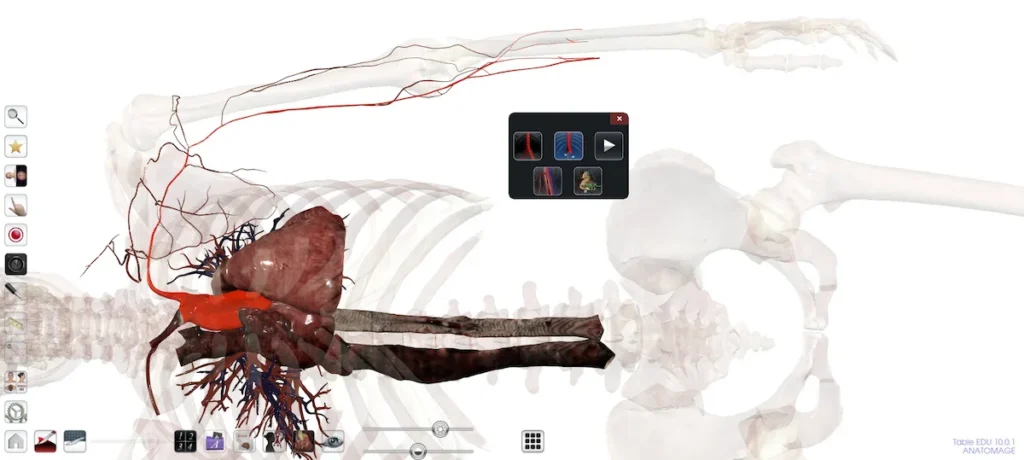
Vascular Grow
Cardiovascular Tools: Tap on the tool, then select an artery or vein to remove the entire vessel and see it grow back to fill out the vessel’s pathway. Tap the tool multiple times to apply different views, and pause the growth at any point with the Play/Pause button.
Point-to-Point Dissection
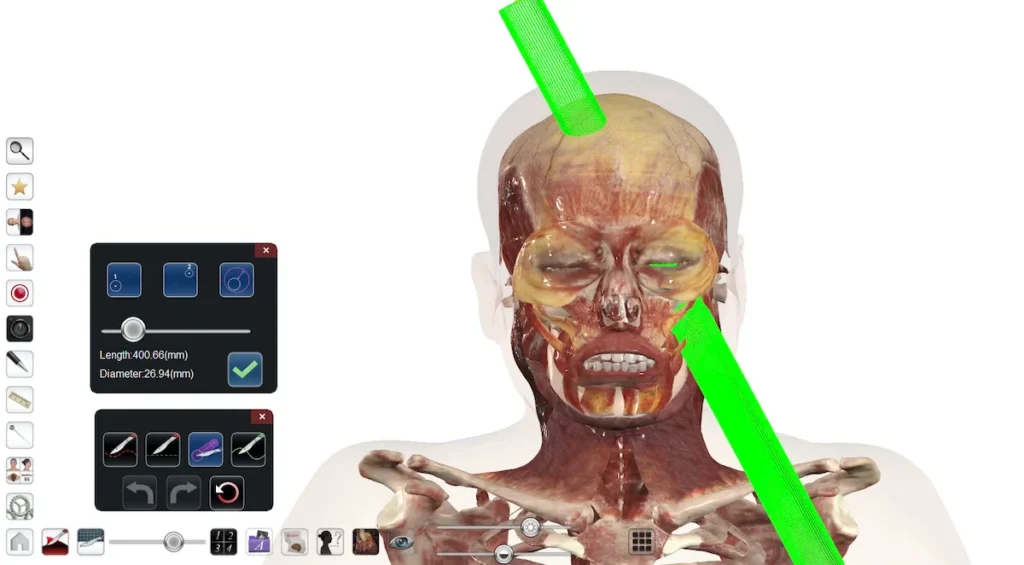
Dissection Tool: This new dissection feature allows you to sculpt out a custom cylinder by selecting a point “a”, a point “b”, and a custom diameter for removal. Drill out an area for a knee surgery simulation, or create your own Phineas Gage experiment!
Tournament Mode
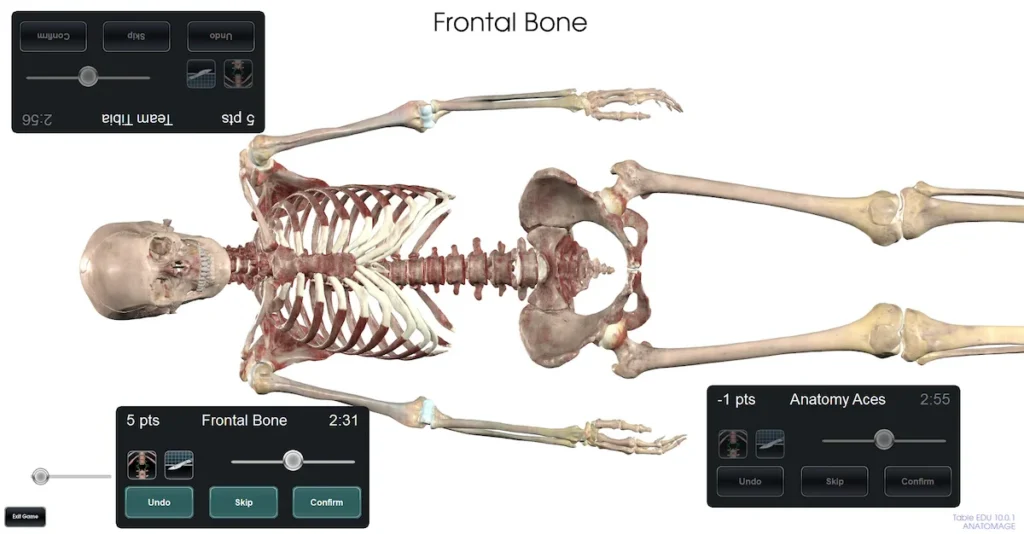
Quiz Mode: This new Quiz Mode feature is designed to allow two to three different teams to compete head-to-head on the Table.
Quick-View Presets
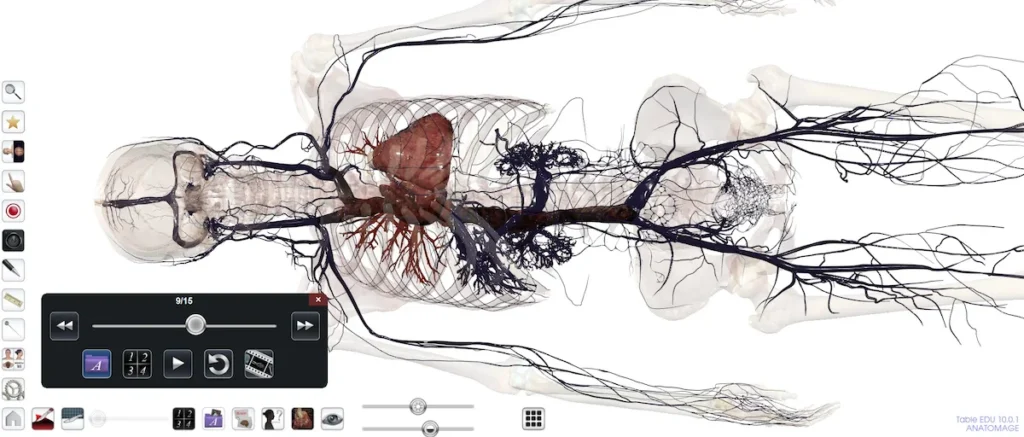
Preset Menu: Flip through presets in the preset menu, or replay them automatically. Quickly access new Pre-Made preset images for different body systems and learning topics.
Ultrasound Viewer
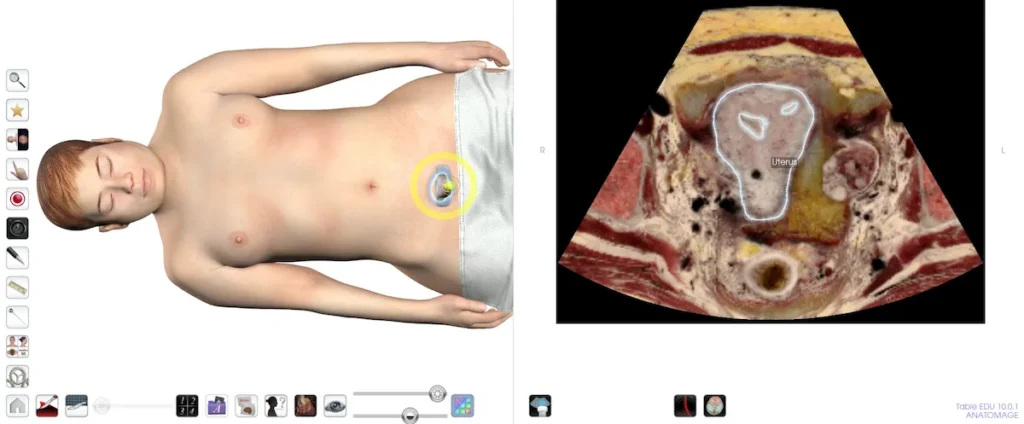
Layout Tool, 2D/3D view: Simulate an ultrasound perspective on the right-side of the screen while moving an ultrasound tool over the cadaver on the left side of the screen. (Note, this tool simulates an ultrasound perspective, but is not an actual ultrasound image).
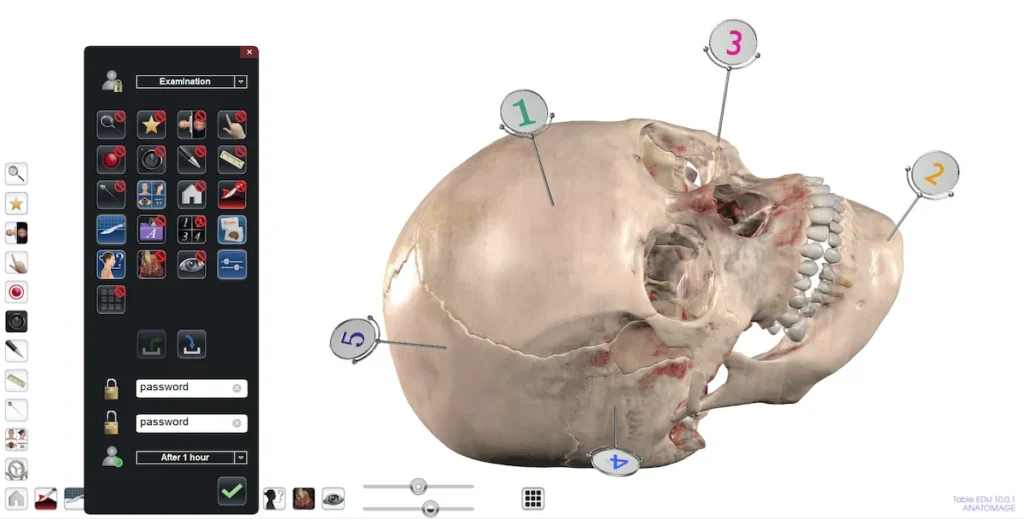
User Modes
Settings: Feature Lock has expanded. You can now customize specific features that students are able to use on the Table. Choose a preset mode for Lecture, Examination, Activity, Beginner users, or Kiosk use, or create a custom combination of available tools to fit your needs.
New Flythroughs
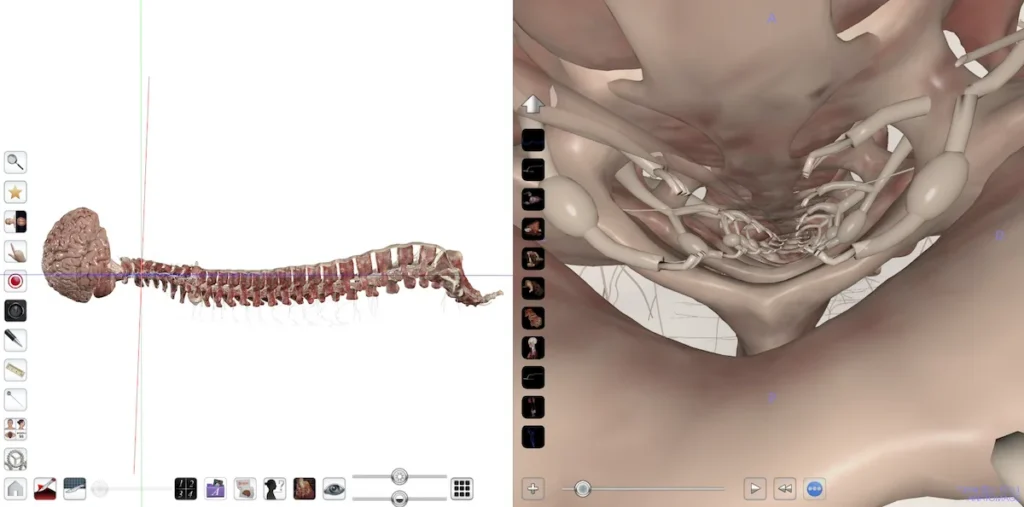
Layout Tool, Flythrough: New Flythrough simulations have been added to Victor and Vicky.
Lecture Tool Improvements
Lecture Tool: You are now able to pause a lecture as you are recording. Pausing during the recording process will also trigger a pause in the lecture playback so that you can prompt your students to perform certain tasks at particular times by pausing the lecture for them. The lecture tool also has updated interface icons for better clarity.
Icon Changes
Cardiovascular Tools
All Cardiovascular Tools are now grouped under one icon. This includes Blood Flow, Vascular Grow, and the Full Body Blood Flow and Heart Motion tools that were previously kept in “Live Mode”.
Explore Tools
The Explore Menu now just refers to Removal, Split-Screen Removal, and Highlight. The Blood flow tool has been moved to the Cardiovascular Tools menu. The Split-Screen removal feature now has its own icon.
Anatomage Curriculum
The Anatomage Curriculum, which used to be placed in the preset menu within the “Anatomage Created” folder, has been moved to its own icon on the desktop. Access all Anatomage premade images here, and easily add them to your presets for further customization.
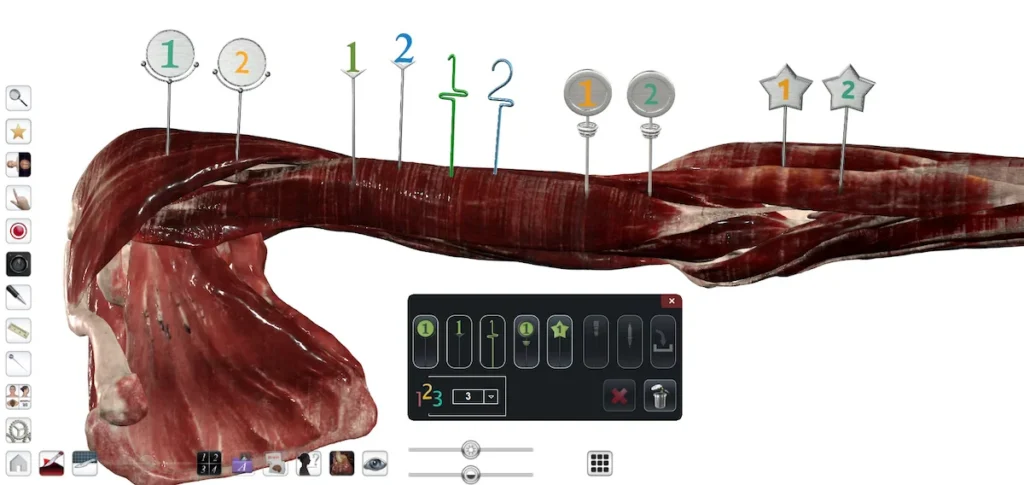
New Pin Color
New silver visual for all 5 pin types. Pins have also been updated with better visuals in the 2D slice images to make placement even more accurate.
Functional Anatomy
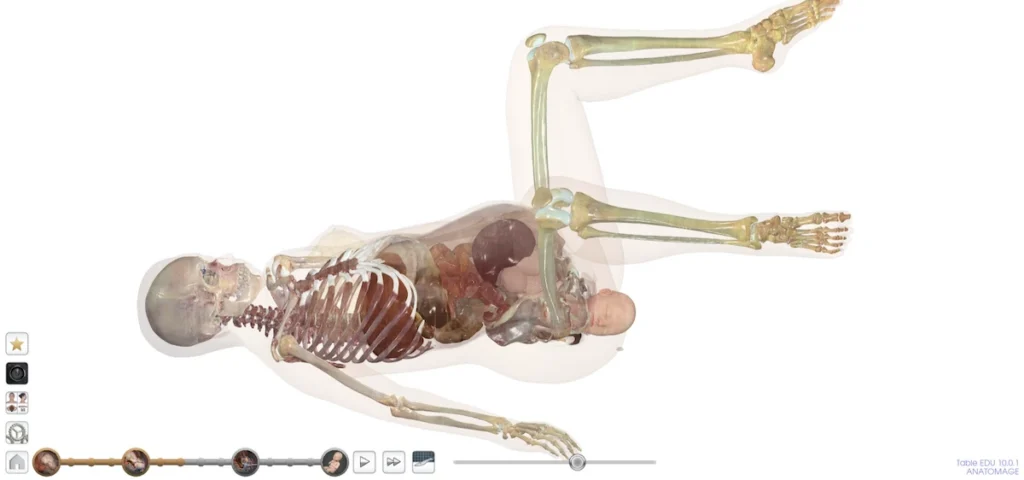
New: Birth Simulation
A brand new simulation has been added depicting the stages of birth using our Asian Female cadaver model and a digitally created fetal model. Within this simulation you can:
- Play the birth simulation
- Toggle between different stages
- Apply a sagittal cut to the pregnant model
- Apply transparency to the pregnant model
Cardiology: Arrhythmias
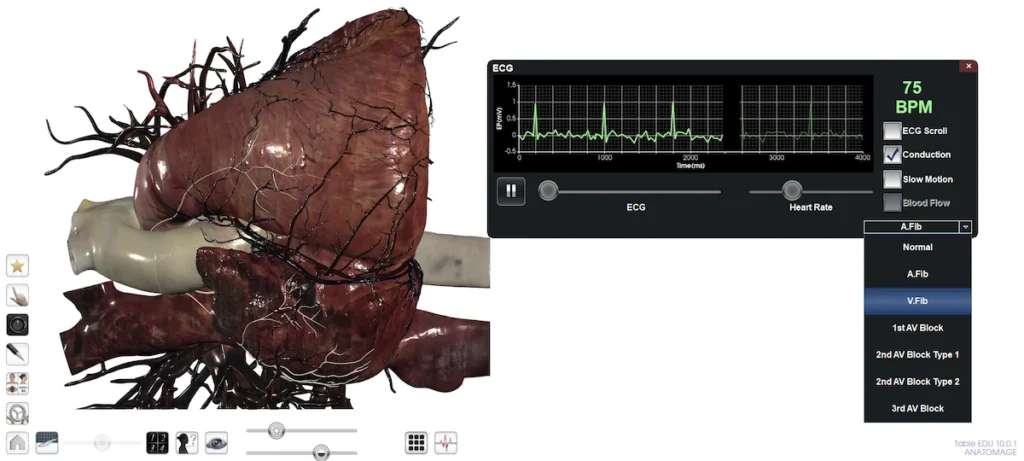
You can now alter the heart rhythm of the Cardiology scan to reflect Atrial fibrillation, Ventricular fibrillation, and 1st, 2nd, and 3rd degree heart blocks. These arrhythmias will be reflected in the heart model and the ECG.
New Features and Tools: Other
Histology and Case Library
Pathology Filter: Within any Histology or Case Library sub-category, filter for slides and scans that contain pathology.
Navigation
Custom Subjects: You can now create your own course subjects within the “Navigation” tab on the main menu. Add any cadaver, functional anatomy scan, case library scan, curriculum page, histology slide, or prosection to your custom subject using the new “Add to Subject” tool in the toolbar. You can then quickly access material relevant to topics or classes through the Navigation tab in the future.
Prosection
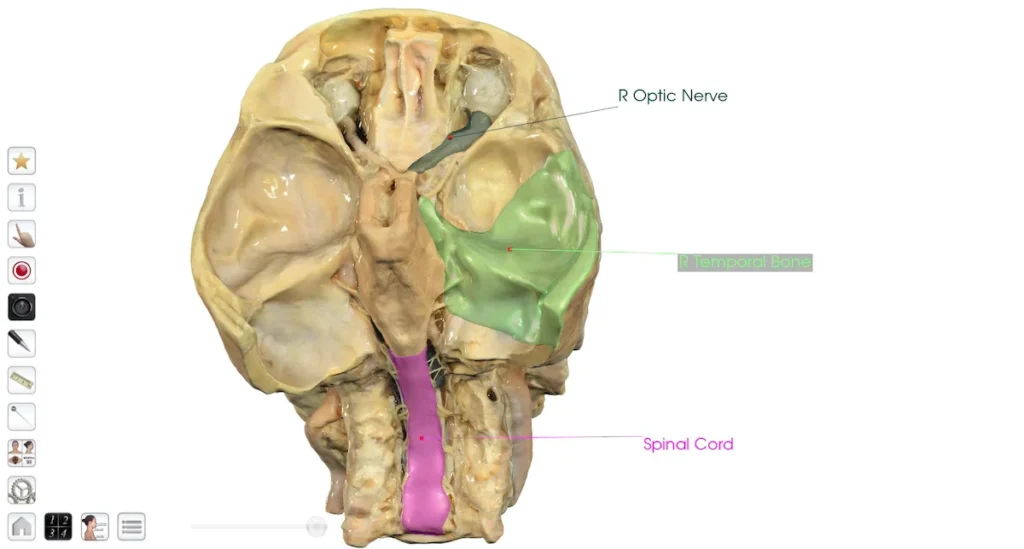
New Prosections: Additional prosection images have been added, including Heart with Complete Aorta and Branches, Heart with Pacemaker, and Abdominal Aortic Aneurysm.
New Rendering: A new, higher quality image rendering has been applied to all prosections.
Anatomage Share Integration
Anatomage Share now better directly integrates with your Anatomage Table. Link your AnatomageShare.com account to your Anatomage Table through the icon in the main menu. Once linked, you can:
- Download content you have uploaded to Anatomage Share directly onto the Table
- Download content you have bookmarked on Anatomage Share directly onto the Table
- Download content that has been shared with you on Anatomage Share directly onto the Table
- Download content that was uploaded to Groups you are in directly onto the Table
Once downloaded onto the Table, content will be available in the “Anatomage Share” tab in the main menu, and within the “Anatomage Share” folder in the preset menu.